Installing Jenny Mod in Minecraft Java Edition is a straightforward process when you use the correct game version, compatible mod loader, and proper installation steps. As one of the most well-known community-created Minecraft mods, Jenny Mod is designed specifically for the Java Edition, allowing players to expand their gameplay with additional interactive content while enjoying the flexibility of Minecraft’s extensive modding ecosystem.
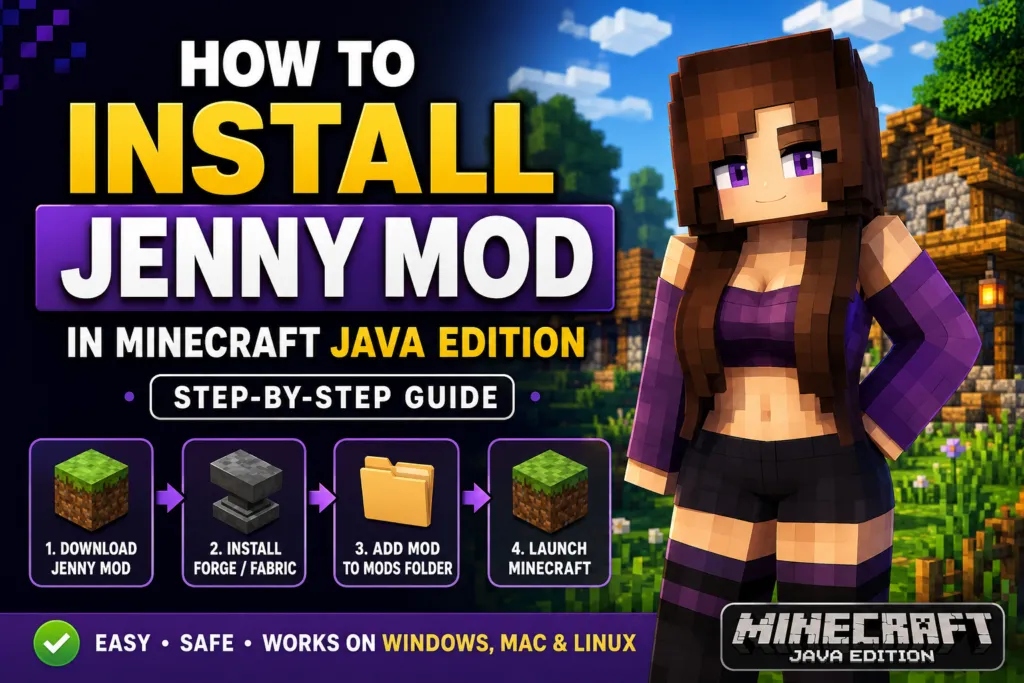
Many installation problems occur because players download the wrong mod version or use an incompatible release of Forge or Fabric. Fortunately, these issues are easy to avoid by checking your Minecraft version before downloading any files. Taking a few minutes to prepare your game can prevent crashes, loading errors, and compatibility conflicts with other installed mods.
In this guide, you’ll learn everything required to install Jenny Mod successfully on Windows, macOS, and Linux. We’ll explain how to verify your Minecraft version, prepare your computer, install the required mod loader, add the mod correctly, and avoid common installation mistakes. Whether you’re installing Jenny Mod for the first time or updating an existing setup, this step-by-step tutorial will help you complete the process safely and efficiently.
| Feature | Details |
|---|---|
| Mod Name | Jenny Mod |
| Minecraft Edition | Java Edition |
| Supported Platforms | Windows, macOS, Linux |
| Installation Difficulty | Easy |
| Required Mod Loader | Forge or Fabric (Version Dependent) |
| Installation Time | 5-10 Minutes |
| Java Required | Yes |
| Internet Connection | Required for Download |
| Price | Free |
| Best For | Minecraft Java Edition Players |
What You Need Before Installing Jenny Mod
Before downloading Jenny Mod, it’s important to prepare your Minecraft installation properly. Completing a few simple checks beforehand will make the installation process much smoother and significantly reduce the chances of encountering errors later. Most issues reported by players are caused by version mismatches rather than problems with the mod itself.
Minecraft Java Edition
The original Jenny Mod is developed for Minecraft Java Edition. If you’re using Minecraft Bedrock Edition, you won’t be able to install Java mods directly because both editions use different game engines and file formats. Before continuing, make sure you’re launching Minecraft Java Edition through the official Minecraft Launcher.
A Compatible Jenny Mod Version
Every release of Jenny Mod is built for a specific Minecraft version. Installing a mod intended for Minecraft 1.20 on Minecraft 1.21, for example, may prevent the game from starting correctly. Always choose a Jenny Mod version that matches your installed Minecraft release.
Forge or Fabric Mod Loader
Minecraft cannot load most community-created mods by itself. You’ll need a compatible mod loader, typically Minecraft Forge or Fabric, depending on the Jenny Mod version you intend to use. Read the installation notes for the mod before downloading to determine which loader is required.
Java Runtime
Minecraft Java Edition depends on Java to run properly. While modern Minecraft launchers often include the required Java version, some mod configurations may still require a compatible Java Runtime Environment. Keeping Java updated helps improve stability, compatibility, and overall game performance.
Sufficient Storage Space
Although Jenny Mod itself is relatively small, you should have enough free storage space for Minecraft updates, mod loaders, world backups, and additional compatible mods you may install later. Using an SSD instead of a traditional hard drive can also improve loading times.
Stable Internet Connection
You’ll need an internet connection to download:
- Jenny Mod
- Forge or Fabric
- Minecraft updates (if required)
- Java updates
Once everything has been installed, internet access is generally only needed for future updates.
Back Up Your Minecraft Worlds
One of the most important steps before installing any Minecraft mod is creating a backup of your saved worlds. Although Jenny Mod does not normally damage existing worlds, unexpected issues such as incompatible mods, corrupted files, or incorrect installations can occasionally occur. Keeping a backup allows you to restore your progress if something goes wrong.
Remove Old or Duplicate Mod Files
If you’ve installed Jenny Mod before, check your mods folder and remove outdated or duplicate versions before copying the latest release. Multiple versions of the same mod can cause loading conflicts or prevent Minecraft from launching correctly.
Close Minecraft Before Installing
Never copy or replace mod files while Minecraft is running. Close both the game and the Minecraft Launcher before making changes to the installation folder to ensure files are updated correctly.
Check Your Minecraft Version
Knowing your Minecraft version is one of the most important parts of installing Jenny Mod. Every mod release is built for a specific version of Minecraft Java Edition, and using the wrong combination can lead to crashes, missing content, or startup errors. Taking a moment to verify your game version before downloading the mod saves time and helps avoid unnecessary troubleshooting.
How to Find Your Minecraft Version
Checking your version only takes a few seconds.
- Open the Minecraft Launcher.
- Select the Java Edition tab.
- Choose the installation profile you normally use.
- Look for the version number displayed next to the selected profile.
- Make a note of this version before downloading Jenny Mod.
You can also verify the version after launching Minecraft. The current game version is displayed on the main menu and can be confirmed before entering a world.
Why Version Compatibility Matters
Minecraft receives frequent updates that introduce new blocks, gameplay mechanics, bug fixes, and internal code changes. Because of these updates, mods must also be updated to remain compatible.
If your Minecraft version, Jenny Mod version, and Forge or Fabric version don’t match, you may encounter problems such as:
- Minecraft crashing during startup.
- The mod failing to appear in the installed mods list.
- Black or frozen loading screens.
- Missing textures or game assets.
- World loading errors.
- Compatibility conflicts with other installed mods.
Using matching versions greatly improves installation success and ensures Jenny Mod functions as intended.
Keep Your Minecraft Installation Organized
Many experienced Minecraft players create separate installation profiles for different game versions. This makes it easy to switch between vanilla Minecraft, modded gameplay, and older releases without affecting existing worlds or installed mods.
Maintaining an organized setup also simplifies future updates, reduces compatibility issues, and allows you to test new mods without risking your primary Minecraft installation.
Once you’ve confirmed your Minecraft version and completed the preparation steps, you’re ready to download the correct Jenny Mod release and install the required Forge or Fabric mod loader in the next stage of the guide.
Download the Correct Jenny Mod Version
After confirming your Minecraft Java Edition version, the next step is downloading a Jenny Mod release that matches your game. Choosing the correct version is essential because Minecraft mods are built for specific game versions. Even a small version mismatch can prevent the mod from loading or cause Minecraft to crash during startup.
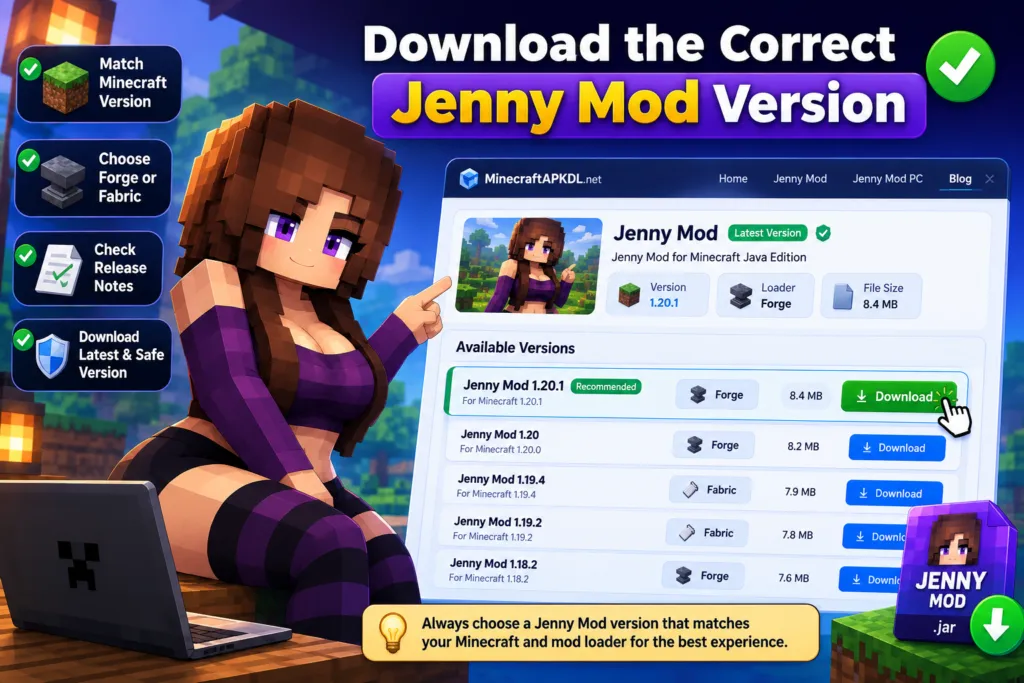
Before downloading, double-check the version displayed in your Minecraft Launcher. For example, if you’re running Minecraft Java Edition 1.20.1, you’ll need a Jenny Mod release that explicitly supports that version. Installing a mod created for an earlier or newer release may result in compatibility errors.
Another important factor is the mod loader. Some Jenny Mod releases are built for Minecraft Forge, while others require Fabric. These mod loaders are different platforms, and a Forge mod cannot be loaded with Fabric, nor can a Fabric mod run on Forge. Reading the version notes before downloading helps ensure you install the correct combination.
Choose the Right Version
When selecting a Jenny Mod release, keep these best practices in mind:
- Match the Jenny Mod version with your Minecraft Java Edition version.
- Confirm whether the mod requires Forge or Fabric.
- Read any installation notes provided with the release.
- Avoid downloading outdated versions unless you are intentionally playing an older Minecraft release.
- If you use additional mods, make sure they are compatible with the same Minecraft version.
Taking a few extra moments to verify compatibility can save significant troubleshooting time later.
Prepare Your Minecraft Installation
Before copying any files into your Minecraft directory, spend a few minutes preparing your game.
Recommended preparation includes:
- Back up important Minecraft worlds.
- Remove duplicate or outdated Jenny Mod files from the mods folder.
- Close Minecraft and the Minecraft Launcher completely.
- Verify that your Java installation is up to date.
- Ensure your selected Forge or Fabric version matches both Minecraft and Jenny Mod.
These simple precautions help reduce installation errors and improve overall stability.
Keep Multiple Versions Organized
If you regularly experiment with Minecraft mods, consider creating separate installation profiles for different game versions. The Minecraft Launcher allows you to maintain multiple Java Edition installations, making it easy to switch between vanilla gameplay and modded worlds without constantly replacing files.
This approach also minimizes compatibility conflicts when testing new Jenny Mod releases or updating other mods.
Install Forge or Fabric
Minecraft Java Edition cannot load most community-created mods on its own. To use Jenny Mod, you must first install a compatible mod loader. The two most popular options are Minecraft Forge and Fabric, each providing a framework that allows Minecraft to recognize and load external modifications.
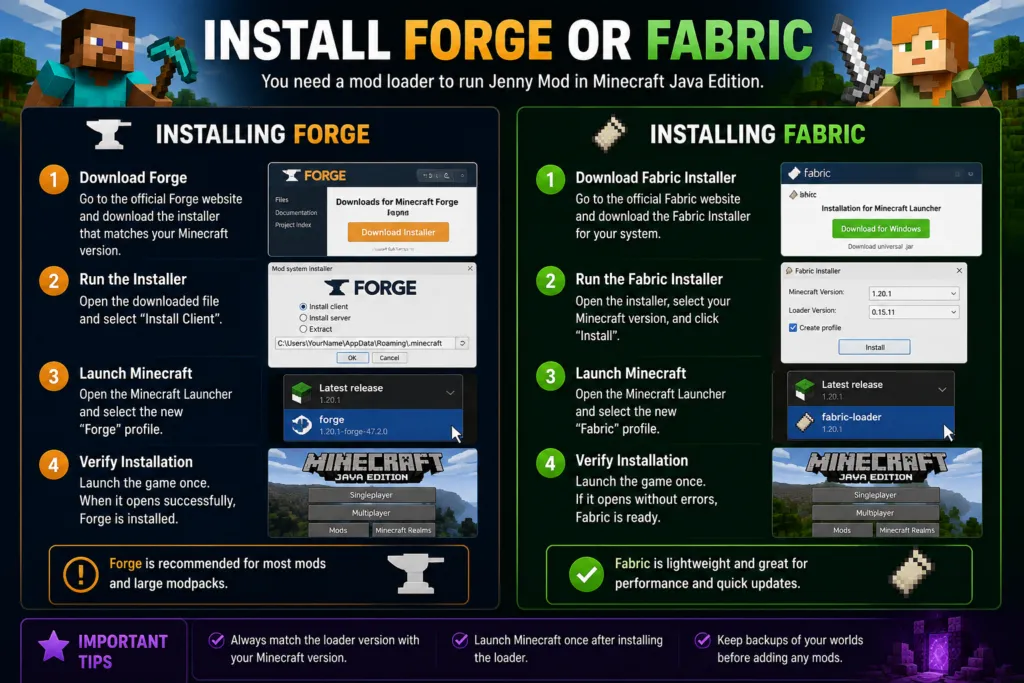
The version of Jenny Mod you downloaded determines which mod loader you need. Always check the release notes before installation.
Installing Minecraft Forge
Forge is the preferred choice for many players because it supports a large collection of Minecraft mods and extensive modpacks.
To install Forge:
- Download the Forge installer that matches your Minecraft version.
- Run the installer on your computer.
- Choose Install Client.
- Select the default Minecraft installation directory unless you’ve installed Minecraft elsewhere.
- Complete the installation process.
- Open the Minecraft Launcher.
- Verify that a new Forge profile appears in your list of available installations.
Once the Forge profile has been created successfully, launch Minecraft once and then close it. This generates the required folder structure, including the mods folder if it doesn’t already exist.
Installing Fabric
Fabric is a lightweight alternative that emphasizes fast loading times and quick compatibility with newer Minecraft releases.
To install Fabric:
- Download the Fabric Installer that matches your Minecraft version.
- Open the installer.
- Select the correct Minecraft version.
- Install the Fabric profile.
- Open the Minecraft Launcher.
- Confirm that the Fabric installation profile is available.
- Launch Minecraft once before closing it.
Like Forge, Fabric automatically prepares the necessary folders during its first launch.
Verify the Mod Loader
Before proceeding, make sure everything is working correctly. Open Minecraft using the Forge or Fabric profile you just installed. If the game reaches the main menu without errors, your mod loader has been installed successfully and is ready to load Jenny Mod.
If Minecraft fails to launch, review the selected Minecraft version and ensure you installed the correct Forge or Fabric release.
Install Jenny Mod
Once Minecraft Java Edition and your chosen mod loader are ready, installing Jenny Mod only takes a few minutes. The process is nearly identical on Windows, macOS, and Linux, with only the folder locations differing between operating systems.
Step 1: Close Minecraft
Exit both Minecraft and the Minecraft Launcher before modifying any game files. Installing mods while the game is running may prevent them from loading correctly.
Step 2: Locate the Minecraft Folder
Open your Minecraft installation directory.
Typical locations include:
Windows
%AppData%\.minecraft
macOS
~/Library/Application Support/minecraft
Linux
~/.minecraft
Inside this directory, locate the mods folder.
If the folder doesn’t exist yet, launch Minecraft once using your installed Forge or Fabric profile, then close the game. The folder should be created automatically.
Step 3: Copy Jenny Mod
Move the downloaded Jenny Mod .jar file into the mods folder.
Avoid extracting the file unless the installation instructions specifically require it. Minecraft reads the original .jar file directly.
Step 4: Launch Minecraft
Open the Minecraft Launcher.
Select the Forge or Fabric profile you installed earlier and start Minecraft.
During startup, the mod loader scans the mods folder and loads every compatible modification.
Step 5: Confirm Installation
When Minecraft reaches the main menu, open the installed mods list. If Jenny Mod appears in the list without any warning messages, the installation has been completed successfully. You can now create a new world or open an existing one to begin using the mod.
Installation Best Practices
Following these recommendations helps ensure a smooth experience:
- Install only one version of Jenny Mod at a time.
- Keep Forge or Fabric updated to a compatible release.
- Use the same Minecraft version across all installed mods.
- Test new mods individually before combining them into large modpacks.
- Back up important worlds before updating or replacing existing mods.
- Remove outdated or incompatible mods to reduce conflicts.
- Restart Minecraft after making changes to the mods folder.
By following these steps carefully, most players can install Jenny Mod successfully on Windows, macOS, or Linux without encountering major compatibility issues. Once the mod is installed, the next step is verifying that it loads correctly and learning how to troubleshoot common installation problems if anything goes wrong.
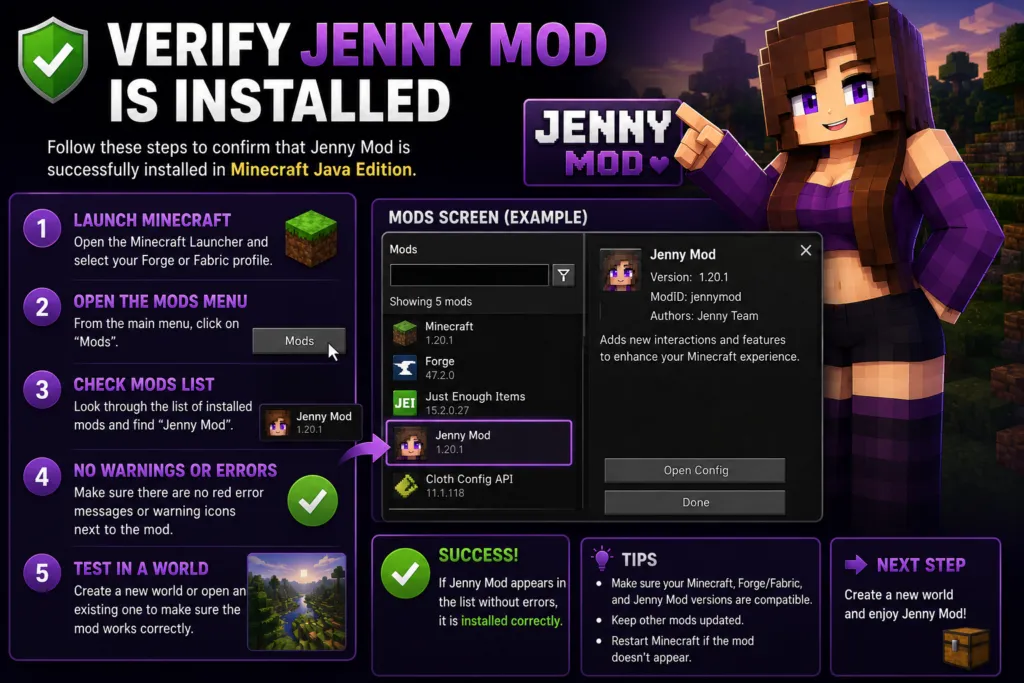
Verify Jenny Mod Is Installed
After completing the installation, it’s important to confirm that Jenny Mod has loaded correctly. Verifying the installation ensures that Minecraft recognizes the mod and that all required components are working together. Spending a few minutes checking your setup now can save time troubleshooting issues later.
Check the Installed Mods List
The easiest way to verify the installation is through the mods menu.
Follow these steps:
- Open the Minecraft Launcher.
- Select the Forge or Fabric profile you installed.
- Launch Minecraft Java Edition.
- Wait until the main menu appears.
- Open the Mods menu (available with Forge or compatible loaders).
- Look for Jenny Mod in the list of installed mods.
If the mod appears without any warning icons or error messages, the installation has been completed successfully.
Create a Test World
Creating a new Minecraft world is another simple way to verify that everything is functioning correctly. Testing in a fresh world allows you to confirm that the mod loads as expected without affecting your existing saves. Once the world has loaded, check whether the features introduced by Jenny Mod are available. If everything works correctly, your installation is complete.
Check for Startup Errors
If Minecraft reaches the main menu without crashing or displaying error messages, your installation is generally stable. However, if you experience long loading times, missing content, or warning messages, review the installed Minecraft version, Forge or Fabric version, and Jenny Mod release to ensure they are compatible.
Verify Other Installed Mods
If you’re using multiple Minecraft mods, make sure they all target the same Minecraft version and use the same mod loader. Mixing incompatible versions is one of the most common causes of crashes and startup failures.
Common Installation Mistakes
Although installing Jenny Mod is relatively straightforward, small mistakes can prevent Minecraft from loading correctly. Fortunately, these problems are usually easy to fix once you identify the cause.
Installing the Wrong Minecraft Version
Every Jenny Mod release is developed for a specific version of Minecraft Java Edition. Installing a version designed for Minecraft 1.20 on Minecraft 1.21, for example, may result in startup errors or missing functionality. Always verify compatibility before downloading.
Using the Wrong Mod Loader
Some Jenny Mod releases require Forge, while others require Fabric. Attempting to load a Forge mod with Fabric, or a Fabric mod with Forge, will prevent the game from loading the mod.
Placing the Mod in the Wrong Folder
The Jenny Mod .jar file must be copied into the mods folder inside your Minecraft installation directory. Placing it elsewhere, such as the downloads folder or desktop, will prevent Minecraft from detecting it.
Extracting the JAR File
Many new players mistakenly extract the downloaded .jar file. In most cases, Minecraft reads the .jar file directly, so extracting it is unnecessary and may stop the mod from loading correctly.
Installing Multiple Versions
Keeping several Jenny Mod versions inside the mods folder can create conflicts. Before installing a new release, remove older versions unless the installation guide specifically recommends otherwise.
Forgetting to Update Java
Outdated Java installations may cause unexpected crashes or prevent Minecraft from launching. Updating Java regularly improves compatibility and overall stability.
Troubleshooting Jenny Mod Installation
If Jenny Mod doesn’t work after installation, don’t panic. Most installation problems are caused by incorrect versions, conflicting mods, or missing dependencies rather than problems with the mod itself.
The following table highlights the most common issues and their solutions.
| Problem | Possible Cause | Solution |
|---|---|---|
| Minecraft crashes during startup | Version mismatch | Install matching Minecraft, Forge/Fabric, and Jenny Mod versions |
| Jenny Mod does not appear | Incorrect folder | Move the .jar file into the mods folder |
| Black screen | Conflicting mods | Remove recently installed mods and test again |
| Game freezes | Insufficient RAM | Allocate additional memory through the Minecraft Launcher |
| Low FPS | High graphics settings | Reduce render distance or install optimization mods |
| Missing textures | Resource pack conflict | Disable incompatible resource packs |
| World won’t load | Mod incompatibility | Restore a backup and remove conflicting mods |
| Java error | Outdated Java | Update to a compatible Java version |
Review Compatibility
The first thing to check is compatibility.
Verify that:
- Minecraft Java Edition matches the Jenny Mod version.
- Forge or Fabric matches your Minecraft version.
- All installed mods support the same game release.
Even one incompatible mod can prevent Minecraft from loading successfully.
Test Without Other Mods
If Minecraft crashes immediately after startup, temporarily remove other installed mods and launch the game with only Jenny Mod enabled. If the game starts normally, another mod is likely causing the conflict.
Update Your Software
Running current software helps reduce compatibility problems.
Keep the following updated:
- Minecraft Launcher
- Minecraft Java Edition
- Forge or Fabric
- Java Runtime
- Graphics drivers
These updates often resolve known issues and improve game stability.
Check Crash Reports
Minecraft automatically generates crash reports whenever the game encounters a serious error. Reviewing these reports can help identify missing dependencies, incompatible mods, or version conflicts that need to be addressed.
Tips for a Better Modding Experience
Installing Jenny Mod is only the beginning. Following a few good practices will help keep your Minecraft installation stable as you add more mods over time.
Create Regular Backups
Always back up your Minecraft worlds before installing new mods or updating existing ones. If something goes wrong, you’ll be able to restore your saved progress quickly.
Keep Your Mods Organized
Avoid filling your mods folder with outdated or unused files. Removing unnecessary mods makes troubleshooting much easier and reduces the chance of compatibility conflicts.
Install Mods Gradually
Instead of installing many mods at once, add them individually and test Minecraft after each installation. This makes it much easier to identify which mod is causing problems if an issue occurs.
Allocate Enough RAM
Modded Minecraft usually requires more memory than the standard game. Allocating 4-6 GB of RAM is sufficient for most Jenny Mod installations, while larger modpacks may benefit from additional memory depending on your system specifications.
Improve Performance
If you notice lag or lower frame rates, consider:
- Lowering render distance.
- Closing unnecessary background programs.
- Using an SSD for faster loading times.
- Installing compatible optimization mods such as Sodium or OptiFine.
- Updating graphics drivers regularly.
Stay Updated
Minecraft receives regular updates, and mod developers frequently release compatibility improvements. Keeping Minecraft, Java, Forge or Fabric, and Jenny Mod updated ensures better performance, improved security, and fewer compatibility issues over time.
By following these recommendations, you’ll create a more reliable Minecraft setup that is easier to maintain, troubleshoot, and expand as you explore additional Java Edition mods.
Frequently Asked Questions
1. Can I install Jenny Mod on Minecraft Java Edition?
Yes. Jenny Mod is designed for Minecraft Java Edition and can be installed using a compatible version of Forge or Fabric on Windows, macOS, or Linux.
2. Do I need Minecraft Java Edition to use Jenny Mod?
Yes. The original Jenny Mod is intended for Minecraft Java Edition. It cannot be installed directly on Minecraft Bedrock Edition because the two editions use different game engines.
3. Is Jenny Mod free to install?
Yes. Jenny Mod is generally available as a free community-created Minecraft mod. Always download a version that matches your Minecraft release and installation requirements.
4. Does Jenny Mod work on Windows 11?
Yes. Windows 11 fully supports Minecraft Java Edition, allowing you to install Jenny Mod using the correct Forge or Fabric version.
5. Can I install Jenny Mod on Windows 10?
Yes. Windows 10 is one of the most popular operating systems for Minecraft Java Edition and supports Jenny Mod without any special configuration.
6. Does Jenny Mod work on macOS?
Yes. Mac users can install Jenny Mod by using Minecraft Java Edition together with a compatible Forge or Fabric loader.
7. Can I use Jenny Mod on Linux?
Yes. Minecraft Java Edition supports Linux, making it possible to install Jenny Mod on most popular Linux distributions.
8. Do I need Forge or Fabric?
Yes. Most Jenny Mod versions require either Forge or Fabric to load the mod. Always check which mod loader is required before downloading.
9. Can I install Jenny Mod without Forge?
Only if the version you download specifically supports Fabric. Minecraft Java Edition cannot load most mods without a compatible mod loader.
10. Where should I place the Jenny Mod file?
Copy the downloaded .jar file into the mods folder inside your Minecraft installation directory. Do not extract the file unless instructed by the developer.
11. Why isn’t Jenny Mod showing in Minecraft?
This usually happens because the mod is placed in the wrong folder, the Minecraft version doesn’t match, or the incorrect Forge or Fabric version is installed.
12. Why does Minecraft crash after installing Jenny Mod?
Startup crashes are commonly caused by incompatible Minecraft versions, outdated Java, conflicting mods, or using the wrong mod loader.
13. Can I install Jenny Mod with other Minecraft mods?
Yes. Jenny Mod can work alongside many compatible Minecraft Java Edition mods, provided they support the same Minecraft version and mod loader.
14. Will installing Jenny Mod delete my Minecraft worlds?
No. Installing the mod does not normally affect existing worlds. However, creating a backup before installing or updating any mod is strongly recommended.
15. How long does it take to install Jenny Mod?
For most players, the installation process takes about 5 to 10 minutes, including downloading the required Forge or Fabric loader.
16. How do I update Jenny Mod?
Download the latest version that matches your Minecraft release, remove the older Jenny Mod file from the mods folder, and replace it with the updated version.
17. Is Jenny Mod safe to install?
Jenny Mod is generally safe when you use a compatible version and follow the recommended installation steps. Always verify compatibility with your Minecraft version before installing.
18. Can I uninstall Jenny Mod later?
Yes. Simply close Minecraft, remove the Jenny Mod .jar file from the mods folder, and restart the game. Your original Minecraft installation remains unchanged.
Conclusion
Installing Jenny Mod in Minecraft Java Edition is a simple process when you follow the correct steps and use compatible software versions. Before you begin, verify your Minecraft version, install the appropriate Forge or Fabric mod loader, and choose a Jenny Mod release that matches your game. Taking these precautions helps prevent common issues such as startup crashes, missing mods, or compatibility conflicts.
After installation, confirm that Jenny Mod appears in your installed mods list and test it in a new Minecraft world to ensure everything is working correctly. If you encounter any problems, reviewing your Minecraft version, Java installation, and mod loader is often enough to resolve them. Keeping your game, Java, and mod loader updated also improves stability and performance over time.
As you continue exploring Minecraft Java Edition, remember to back up your worlds before installing new mods, organize your mods folder, and add additional modifications gradually to avoid conflicts. With the right setup and regular maintenance, Jenny Mod can become a seamless part of your Minecraft experience, allowing you to enjoy expanded gameplay while maintaining a stable and well-optimized game installation.